
Whoitam Map Measurement is very user friendly and easy to use. It is special for measuring scanned image. It makes easy, difficult process of measuring and adjusting map with few steps. It is accurate with many features. You can zoom to measure small length, get results with common units and real world inch, measure automated area and vectorize it automatically, merge image and measure it flying, use many filters useful to measure and finally save whole things as a project file.
Raster To Vector
This feature helps to make a vector(dxf file) from a raster image for editing
them by Adobe Illustrator or AutoCad software. To make a vector from a
raster image first you have to make a Black-White and CenterLine image.
You can do these by Whoitam Image Measurement easily.
Step 1: Main Menu>Image>Filter>Other>Threshold… or Threshold 2… or
Auto Threshold
This will make a Black-White image.
Step 2: Main Menu>Image>Filter>Other>Make CenterLine
This will make a CenterLine image.
Now Main Menu>Tools>Raster To Vector…
as shown in video. After Vectorisation you can save the vector as a dxf file.
Count Object
An object in image mean, an identifiable portion of an image that
can be interpreted as a single unit. The shape of these objects can
be any type. Here white color will be determined as background and
other colors as objects. Count Object means getting the width, height
amount, position, area of these objects. Here to count object first
you have to adjust the threshold for making your objects visible.
Then click “Count”.
Make CenterLine image and measure area
Measure image taken by camera
Earth orbit script
Get same area always
In version 5.25 “Mean” option added in Main Menu>Tools>Option>Magic Selection/Color Bucket Settings…. Enabling this option makes area always same and accurate at a particular tolerance, even in noisy environment and clicking anywhere in a region. You will get this image in “Trial Images” folder to test yourself.
Accurate measurement with Measurement palette
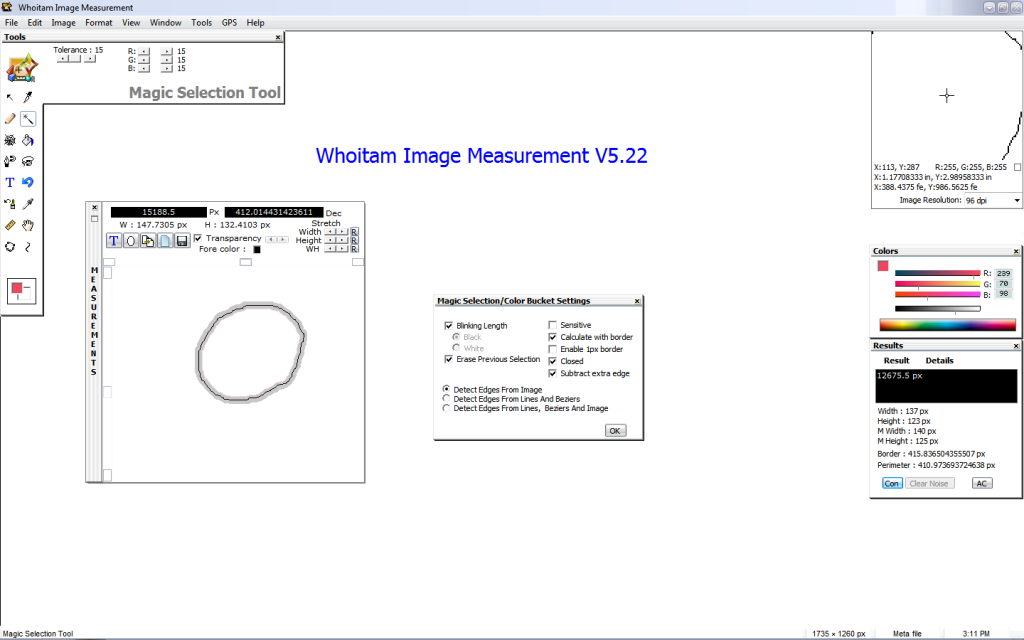
For accurate map measurement the selection have to go through the center of the map border. But if your map border is thick then you have to grow the selection for setting it through the center line of the border. By measurement palette you can grow or shrink the selection separately width or height or both and you will get the area, width, height of stretched selection same time.
For example, if your border is 2px thick and after selection and clearing noise width is 129px in Result palette. Then new width in measurement palette have to be 130px. If you are measuring map then don’t forget to enable the “Calculate with border” option.
Accuracy comparing of Whoitam Image Measurement with other internet resource
Whoitam Image Measurement is accurate than any other software in internet up to now. You see it in this video. It is only an example. Here a script is used to draw the circle to test. Because, circle drawn by this method makes more accurate shape than other circle drawing method. you will find this script in “Script Samples” folder.